

This guide explains how to connect and configure your Magento store inside SellEnvo.
By connecting via API credentials, SellEnvo can synchronize products, orders, inventory, pricing, and listings automatically.
1. Account Setup
Before configuring Magento in SellEnvo, you must generate API credentials from your Magento Admin panel.
Generate API Credentials in Magento
- Go to System → Extensions → Integrations.
- Click Add New Integration.
- Enter a name and required details.
- In the API tab, grant the necessary permissions.
- Activate the integration.
- Copy the following credentials:
- Consumer Key
- Consumer Secret
- Access Token
- Token Secret
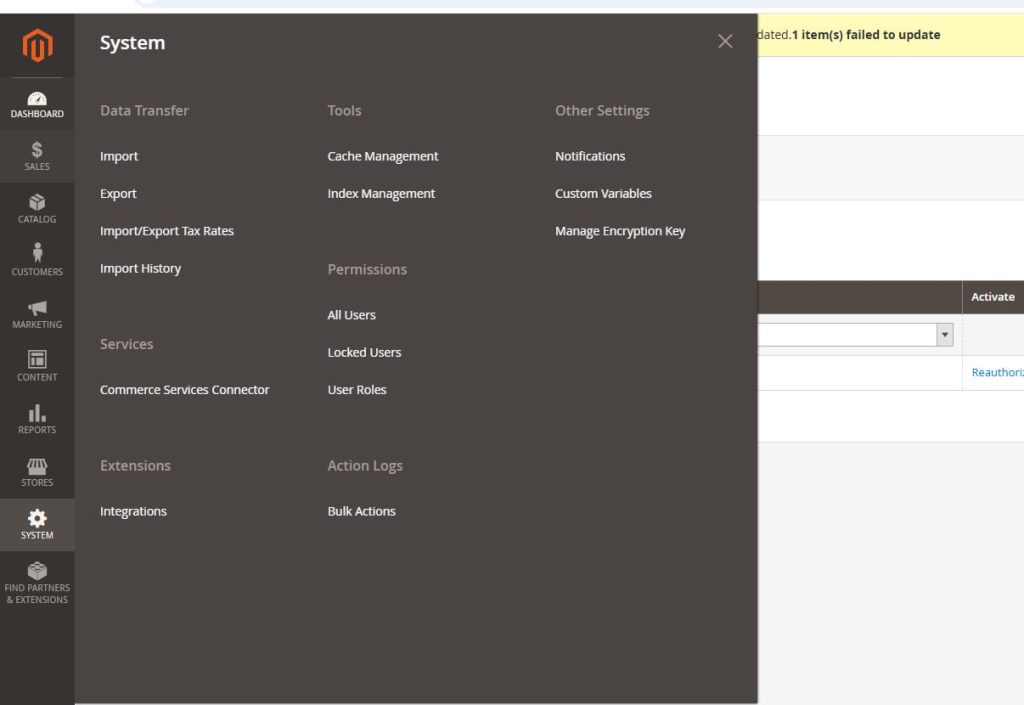
Configure Magento in SellEnvo
In the Magento channel settings:
- Enable the channel
- Enter a recognizable name
- Add your Store Base URL
- Paste the Consumer Key
- Paste the Consumer Secret
- Paste the Access Token
- Paste the Token Secret
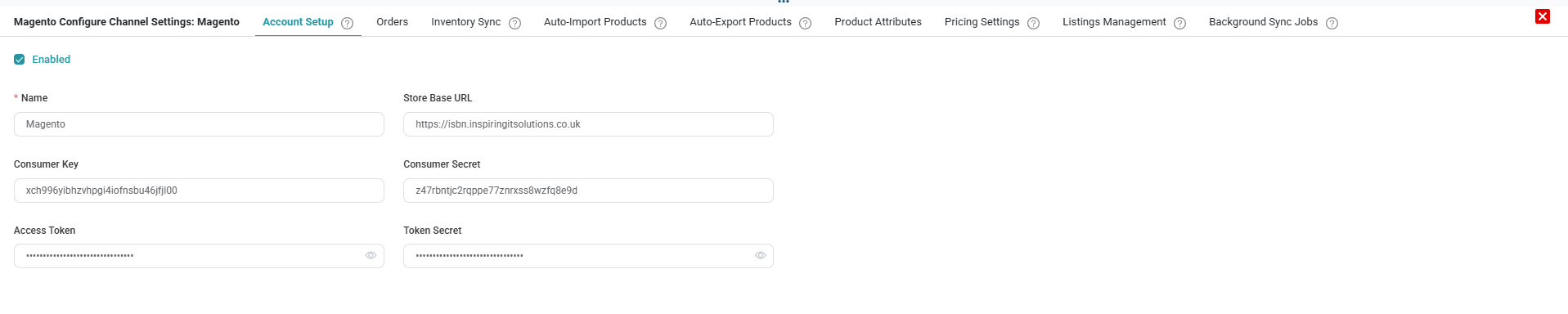
Click Save to complete the connection.
2. Orders
Control how Magento orders are imported into SellEnvo.
Enable Order Sync
Activate automatic order download to import Magento orders as Sales Orders.
Order Start Date
Select the date from which orders should begin syncing.

Save changes after configuration.
3. Inventory Sync
Manage how stock levels are synchronized between SellEnvo and Magento.
Location & Warehouse Mapping
Map Magento locations to SellEnvo warehouses.
Enable Inventory Sync
Turn this on to synchronize stock updates automatically.
Inventory Rules
Configure:
- Inventory Source
- Stock Percentage
- Max Quantity
- Out of Stock When

You can also:
- Upload Inventory (push updates to Magento)
- Download Inventory (pull stock data from Magento)
4. Auto-Import Products
Automatically create products in SellEnvo based on Magento listings.
Enable Auto-Creation
Turn on automatic product creation.
Select Template
Choose a mapping template for product data.
Optional settings may include:
- Match listings by SKU
- Set initial inventory count
- Create and link variation products
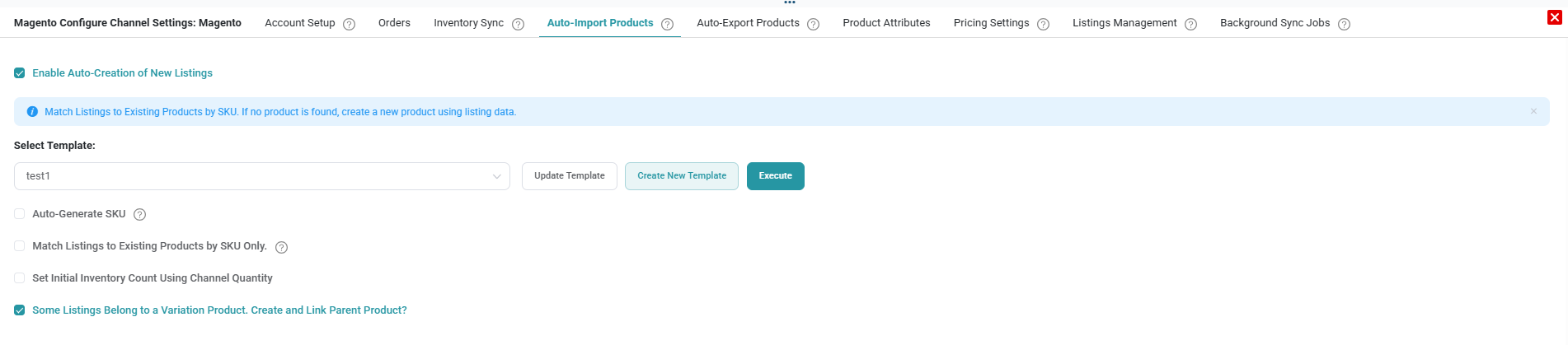
Click Run to execute the process.
5. Auto-Export Products
Automatically list new products from SellEnvo to Magento.
Enable Auto-Export
Activate automatic product listing.
Select Template
Choose the template that defines listing structure and pricing.
Apply Filters
Set conditions to control which products are exported.

Click Run to begin the export process.
6. Product Attributes
Ensure accurate attribute mapping between Magento and SellEnvo.
Download Magento Attributes
Import available attributes from Magento.
Attribute Mapping
Map each Magento attribute to its corresponding SellEnvo attribute.
Magic Matching
Use automatic matching for attributes with similar names.

Correct mapping ensures consistent product data across both systems.
7. Pricing Settings
Control pricing synchronization with Magento.
Enable Pricing Sync
Automatically update Magento listing prices from SellEnvo.
Pricing Tier
Select the pricing tier to apply.
Markup (%)
Apply a markup percentage if required.

Save settings to apply pricing rules.
8. Listings Management
Manage Magento listings directly from SellEnvo.
Here you can:
- View listed products
- Search and filter listings
- Perform Bulk Actions (inventory updates, pricing updates, auto-map, auto-create, auto-revise)
- Use Smart Mapping to link products automatically

This section helps maintain control over your product catalog.
9. Background Sync Jobs
Monitor synchronization processes between SellEnvo and Magento.
You can:
- Track job status (Succeeded / Failed)
- View execution logs
- Filter jobs by status
- Monitor progress in real time
Regular monitoring helps ensure accurate order, inventory, and pricing synchronization.

After completing the setup, your Magento store will be fully connected and synchronized with SellEnvo.
Review your API credentials, inventory rules, and pricing settings carefully before going live. Use the Background Sync Jobs tab to monitor synchronization activity and ensure all processes run successfully.
You can update your configuration at any time as your business needs evolve.

