This guide explains how to connect and configure your Amazon sales channel inside SellEnvo. Follow the sections below to properly set up synchronization, automation, pricing, and listing management.
1. Account Setup
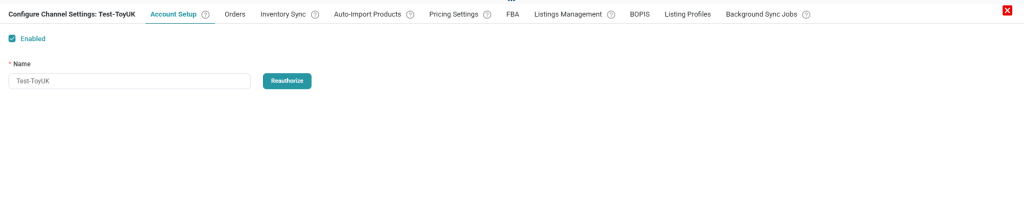
Use this tab to connect your Amazon Seller Central account.
Channel Name
Enter a clear name to identify this Amazon account.
Authorize Account
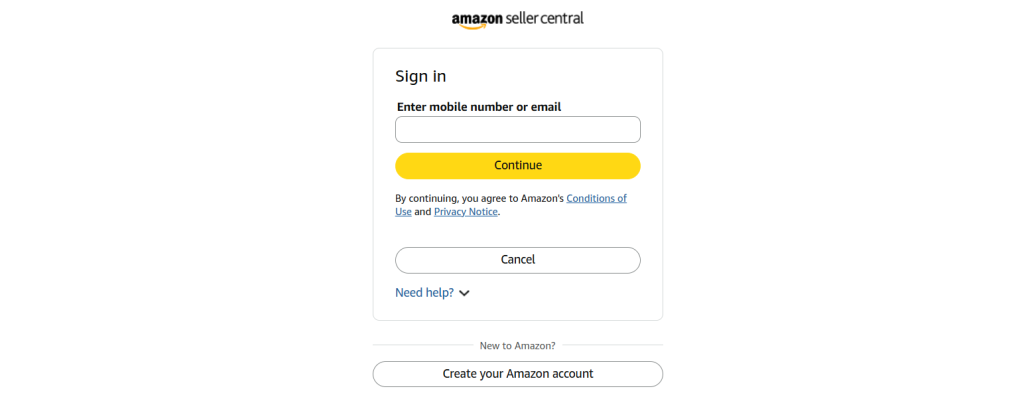
Click Authorize and log in to Amazon Seller Central. Approve the connection request. Once successful, you will be redirected back to SellEnvo.
Region & Marketplaces
Select the appropriate Amazon region and choose the marketplaces you want to manage.
Click Save to continue.
2. Orders
This section controls how Amazon orders are imported into SellEnvo.
Enable Order Sync
Activate automatic order download to import Amazon orders as Sales Orders in SellEnvo.
Order Start Date
Select the date from which orders should begin syncing.
Save your settings once configured.
3. Inventory Sync
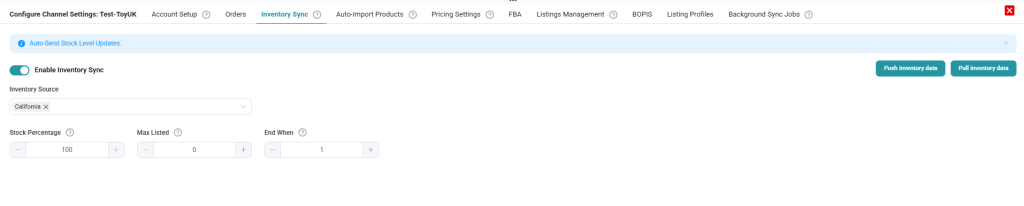
Manage how stock levels are synchronized between SellEnvo and Amazon.
Enable Inventory Sync
Turn this on to automatically update Amazon when stock changes in SellEnvo.
Inventory Source
Choose which warehouse or inventory source should supply stock to Amazon.
Stock Percentage
Limit how much of your available stock is displayed on Amazon (based on percentage).
Max Listed
Set a maximum quantity that can appear on Amazon regardless of actual stock.
End When
Define the stock threshold at which the listing becomes out of stock.
You can also manually:
Push inventory data
Pull inventory data
4. Auto-Import Products
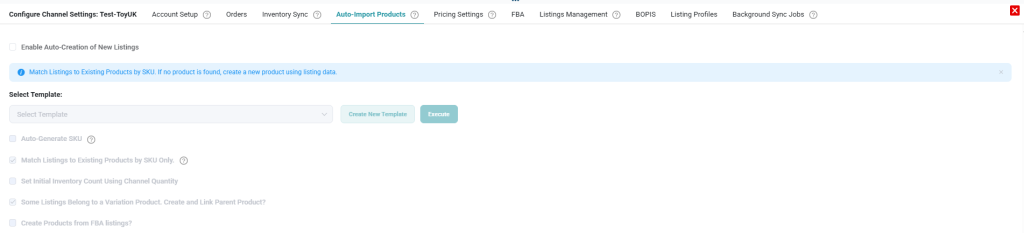
This section allows you to automatically create products in SellEnvo based on Amazon listings.
Enable Auto-Creation of New Listings
Turn this on to automatically create products from Amazon listings.
Select Template
Choose a template that defines how product data is mapped.
Options available:
Auto-generate SKU
Match by SKU only
Set initial inventory using channel quantity
Create and link variation products
Click Execute to run the import process.
5. Pricing Settings
Control how pricing is synchronized with Amazon.
Enable Pricing Sync
Automatically update Amazon listing prices from SellEnvo.
Pricing Tier
Select the pricing tier (e.g., Retail).
Markup (%)
Apply a percentage adjustment if needed.
Save changes to apply pricing rules.
6. FBA
Enable this section if you manage Fulfilled by Amazon (FBA) inventory.
When activated, SellEnvo will:
Recognize FBA locations
Process FBA orders accordingly
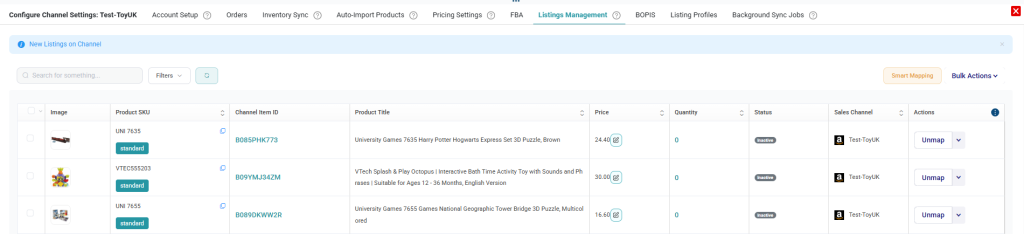
7. Listings Management
Manage all Amazon listings directly from SellEnvo.
Enable Buy Online, Pick Up In Store functionality if supported.
You can:
Activate BOPIS
Map physical stores
Manage Amazon store mappings
Ensure warehouse inventory is properly configured before enabling this feature.
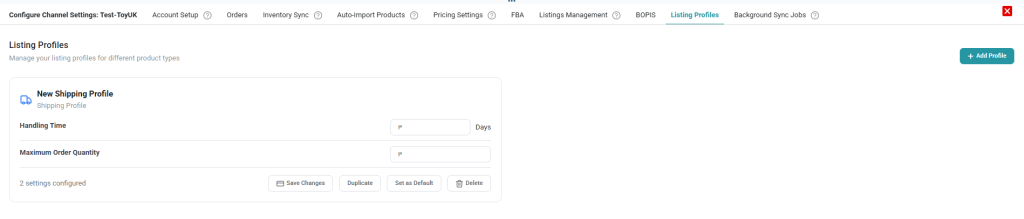
9. Listing Profiles
Listing Profiles allow you to define structured configurations for different product types.
You can:
Create new profiles
Set default profiles
Configure product attributes
Manage brand settings
Duplicate or edit existing profiles
These profiles are used during product creation and listing automation.
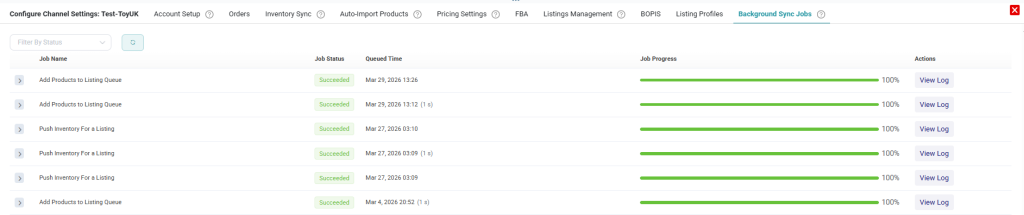
10. Background Sync Jobs
Monitor automated processes that synchronize data between SellEnvo and Amazon.
Here you can:
Track job status (Succeeded / Failed)
View logs
Filter by job type
Monitor order and inventory synchronization
Regularly reviewing this section helps ensure the integration runs smoothly.
Once setup is complete, your Amazon channel will sync products, inventory, and orders automatically. Review your configuration carefully before going live, and monitor Background Sync Jobs to ensure everything runs smoothly.