

Product Templates in SellEnvo allow you to define a structured layout for product information. Templates help standardize how product data is organized by grouping attributes into logical sections such as Product Details, Shipping, or Specifications.
Using templates ensures that products are created with consistent information across the catalog. Templates also simplify the product creation process by providing predefined fields that users can fill when adding new products.
SellEnvo allows you to either create templates manually or generate them automatically from a sales channel category.
Accessing Product Templates
To manage product templates:
- Navigate to System Settings from the main navigation menu.
- In the left sidebar, expand Products.
- Click Product Templates.
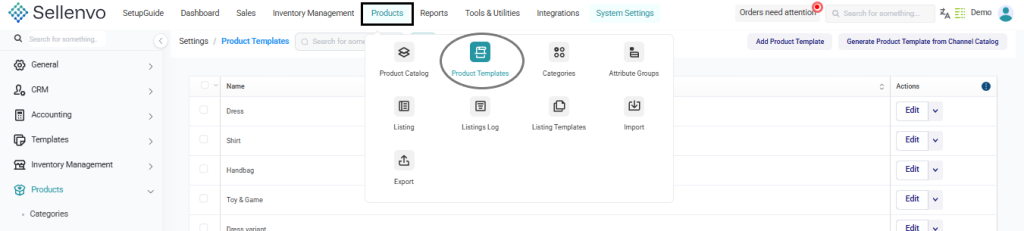
This page displays all available product templates in the system.
From this screen you can:
- View existing templates
- Search for a specific template
- Edit template configurations
- Create a new template
Creating a Product Template Manually
To create a new template manually:
- Click Add Product Template in the top-right corner.
- Enter the Template Name.
- Click Add Section to create sections inside the template.
Sections are used to organize product information into logical groups.
For example:
- Product Details
- Shipping
- Dimensions
- Specifications
Each section will contain attributes that users will fill when creating a product using this template.
You can create multiple sections and arrange them according to your product structure.
If needed, you can remove a section using Delete Section.
After finishing the template setup, click Save Changes to store the template.
Adding Attributes to Template Sections
Attributes define the specific fields that will appear when creating products using the template.
On the right side of the template editor, you will see a list of available Attributes and Properties.
To add attributes:
- Select the desired attribute from the Attributes panel.
- Add it to the appropriate section within the template.
- Arrange attributes as needed within each section.
Examples of common attributes include:
- Material
- Fabric Type
- Pattern
- Size System
- Target Gender
- Package Height
- Package Width
These attributes ensure that product information is structured and consistent.
Generating a Template from a Channel Category
SellEnvo also allows you to generate product templates automatically based on categories from connected sales channels.
To generate a template from a channel:
- Click Generate Product Template from Channel Category.
- Select the Channel from the dropdown list.
- Choose the Search By option.
- Click Select Product Type.
The system will retrieve available attributes from the selected channel category.
You can then map Channel Attributes to SellEnvo Attributes using the Magic Matching feature.
Magic Matching automatically matches attributes between the external channel and SellEnvo’s attribute structure.
Once mapping is completed, the template can be generated and used when creating products.
Managing Existing Templates
From the Product Templates page, you can manage existing templates.
Available actions include:
- Edit – Modify the template structure or attributes.
- Update attribute mappings for templates generated from channels.
- Review and adjust template sections as product requirements change.
Updating templates allows you to keep your product structure aligned with business needs and marketplace requirements.

