

The Data Importer in SellEnvo allows you to import large amounts of data into the system using structured files such as CSV. This feature is especially useful when migrating data from another system or when adding multiple products, orders, or other records at once.
By using the importer, you can automate the process of adding data to the platform while ensuring that fields are mapped correctly between your file and the SellEnvo system.
Accessing the Data Importer
To access the Data Importer:
- Navigate to Products from the top navigation bar.
- Click Import from the Products quick tools panel.
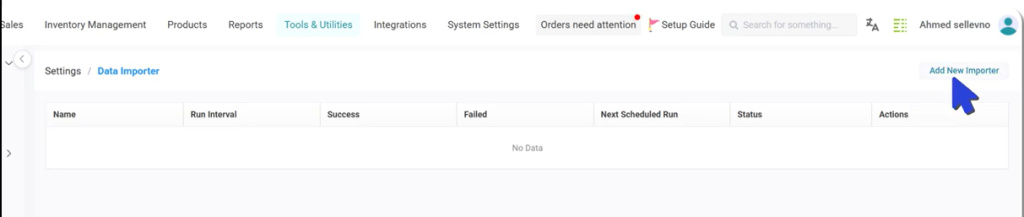
You will be redirected to the Data Importer page under Tools & Utilities.

From here, you can create and manage import configurations.
Creating a New Importer
To create a new import configuration:
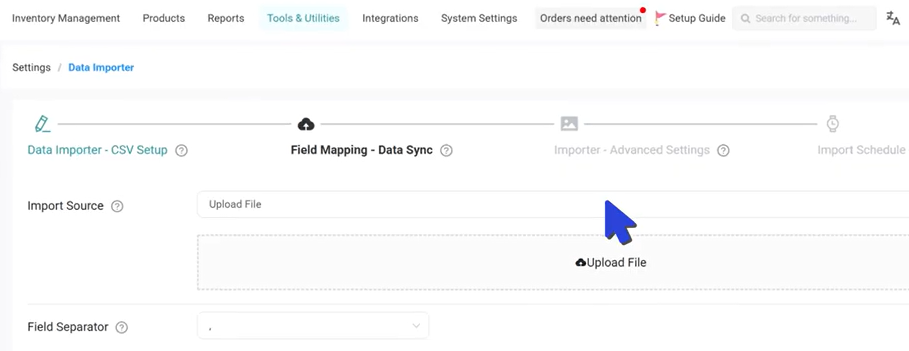
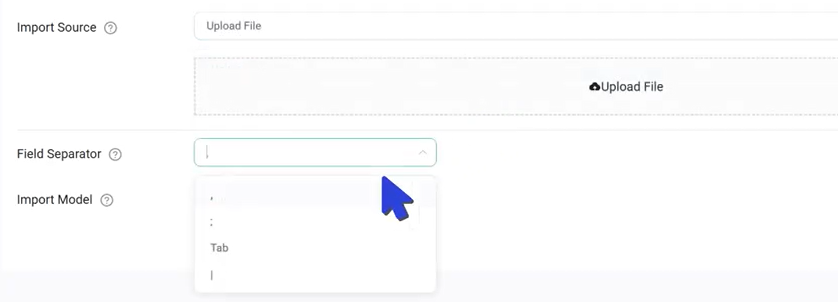
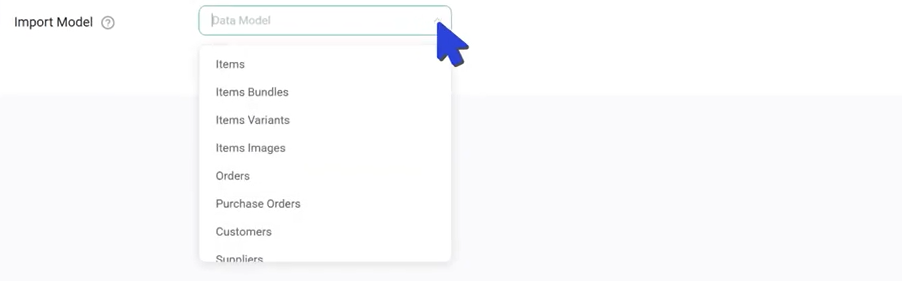

This step prepares the file and defines how the system will read your data.
Field Mapping
After uploading your file, the system will guide you to the Field Mapping stage.
Field mapping ensures that each column in your import file corresponds correctly to the appropriate field in SellEnvo.
For example:
- Product Name → Product Title
- SKU → Product SKU
- Price → Product Price
Correct mapping is essential to ensure that imported data appears properly in the system.
Import Settings and Scheduling
After completing the field mapping, you can configure additional settings such as:
- Import rules
- Data validation
- Import frequency
SellEnvo allows imports to run automatically at scheduled intervals if required.
This is useful when syncing data from external systems regularly.
Monitoring Import Activity
You can monitor the status of your import processes from the Import Log.
The log provides information about:
- Successful imports
- Failed imports
- Import timestamps
- Error messages
Reviewing the import log helps ensure that your data was imported successfully and allows you to troubleshoot any issues.

