

A Variant Product is a product that comes in multiple variations, such as different sizes, colors, or materials. Each variation has its own SKU, inventory, and pricing, while all variants remain grouped under one main product.
This type is commonly used for products like clothing, accessories, or electronics where customers need to choose between different options.
Step 1: Open the Product Creation Page
- Go to the Products section from the main navigation bar.
- Click Create Product located at the top right of the page.

This will open the Create Product setup page.
Step 2: Choose a Product Creation Method
SellEnvo provides different methods for creating products depending on the available data and system configuration.
On the Create Product page, you can choose from the available options.
Upload Image
Upload a product image and allow the AI Assistant to analyze the image and automatically extract product details.
Product with Amazon
Search for product information directly from Amazon by entering the product title, SKU, ASIN, or UPC.
Blank Product
Create the product manually by entering all product details yourself.
This option is ideal when you want full control over the product setup.
To manually create a Variant product:
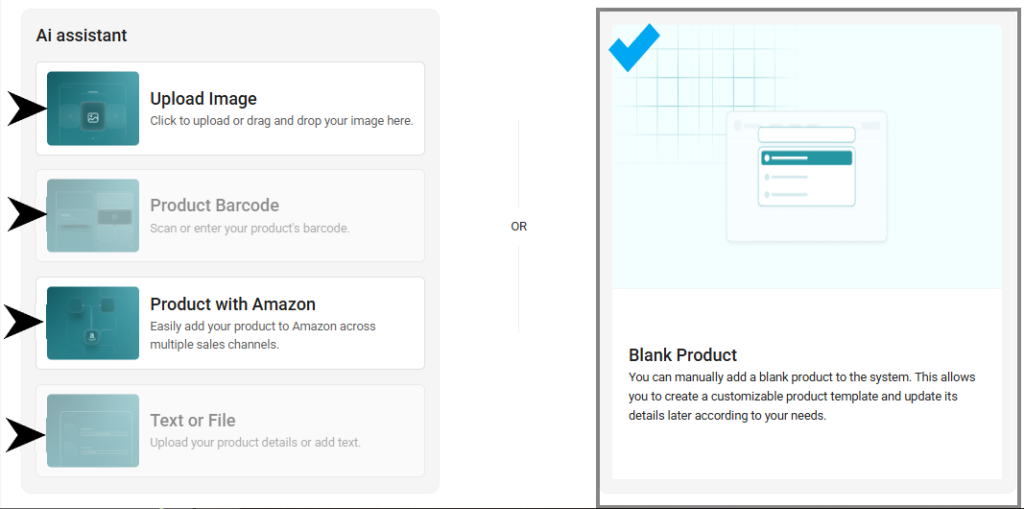
- Select Blank Product.
- Click Next.
Step 3: Enter Basic Product Information
After selecting Blank Product, the system will open the Add Product Details page.
Here you need to enter the basic information for the main (parent) product.
Fill in the following fields:
Title
Enter the name of the product.
SKU
Enter a unique SKU that will identify the parent product.
Brand
Select the appropriate brand from the dropdown list.
Identifier Value (Optional)
Enter an additional identifier such as UPC, EAN, or GTIN if available.
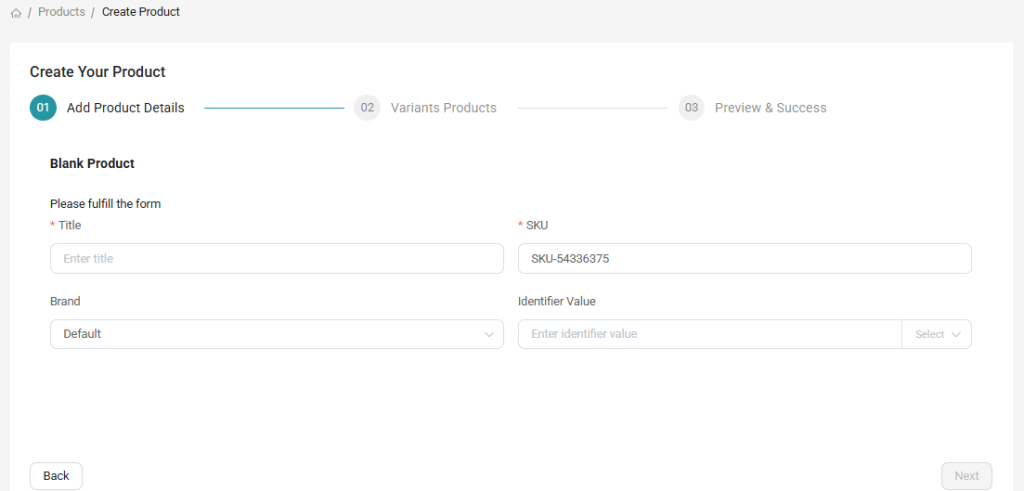
Once the required fields are completed, click Next to continue.
Step 4: Define Variant Options
In the Variants Products step, you will define the attributes that differentiate each version of the product.
These attributes can include:
- Color
- Size
- Material
- Style
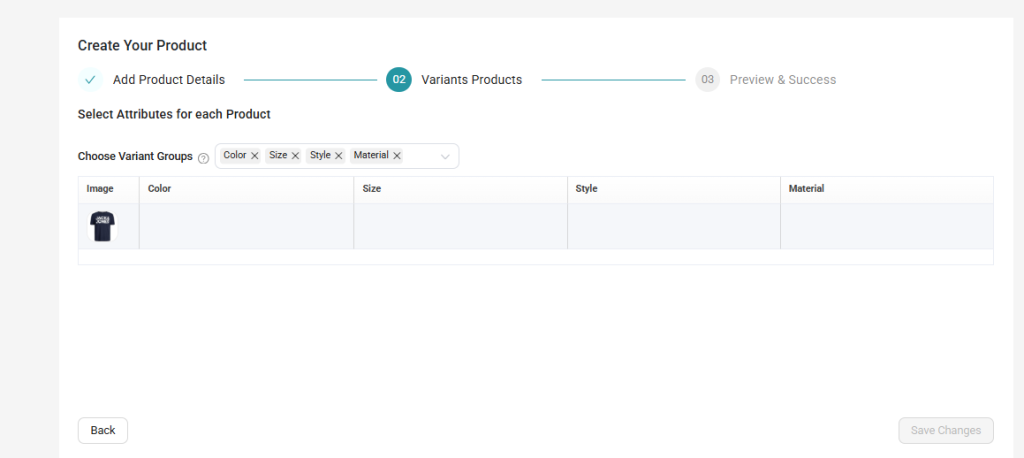
The selected attributes will be used to generate different variant combinations.
For example:
| Attribute | Values |
|---|---|
| Color | Black, Blue, Red |
| Size | Small, Medium, Large |
Based on the selected attributes and values, the system will automatically generate the available variant combinations.
Each variant will have its own:
- SKU
- Price
- Inventory
- Product image (optional)
Step 5: Review and Complete the Product
After generating the variant combinations, the system will move to the Preview & Success step.
Review the product details and confirm that all variants have been created correctly.
Once confirmed, save the product.
The product will now appear in the Product Catalog, where it can be edited, listed on sales channels, and managed within inventory.
Next Step
If you want to create a group of products sold together, continue with:

