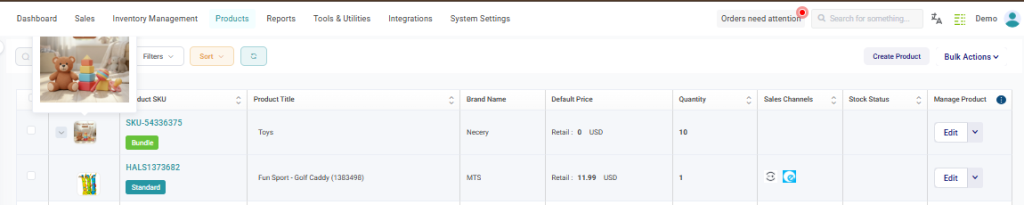
A Bundle Product allows you to group multiple existing products together and sell them as a single package.
This is useful for creating promotional offers, product kits, or seasonal sets. For example, you can combine items such as a shirt, sunglasses, and a belt into a “Summer Outfit Bundle” and sell them together as one product.
Step 1: Open the Product Creation Page
- Navigate to Products from the main menu.
- Click Create Product located at the top right of the screen.

This will open the Create Product setup page.
Step 2: Choose a Product Creation Method
SellEnvo provides different methods to create a product depending on the available data.
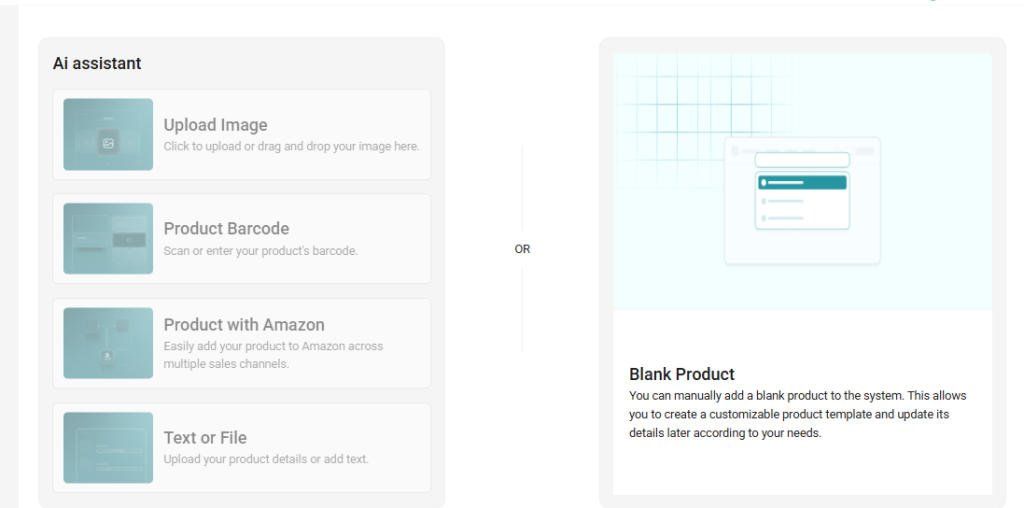
On the Create Product page, you will see several options.
AI Assistant Methods
These options allow the system to automatically generate product details.
Upload Image
Upload a product image and allow the AI assistant to detect product attributes.
Product Barcode
Scan or manually enter a barcode to retrieve product information.
Product with Amazon
Search for product information from Amazon by entering a product name, SKU, ASIN, or UPC.
(Some methods may be disabled depending on system configuration.)
Manual Method
Blank Product
This option allows you to manually create the product by entering all details yourself.
For this guide, select Blank Product, then click Next.
Step 3: Enter Basic Product Information
After selecting Blank Product, you will be redirected to the Add Product Details page.
Fill in the following fields:
Title
Enter the name of the bundle product.
SKU
Enter a unique SKU that identifies the bundle.
Brand
Select the brand from the dropdown list.
Identifier Value (Optional)
Enter a product identifier such as UPC or GTIN if applicable.
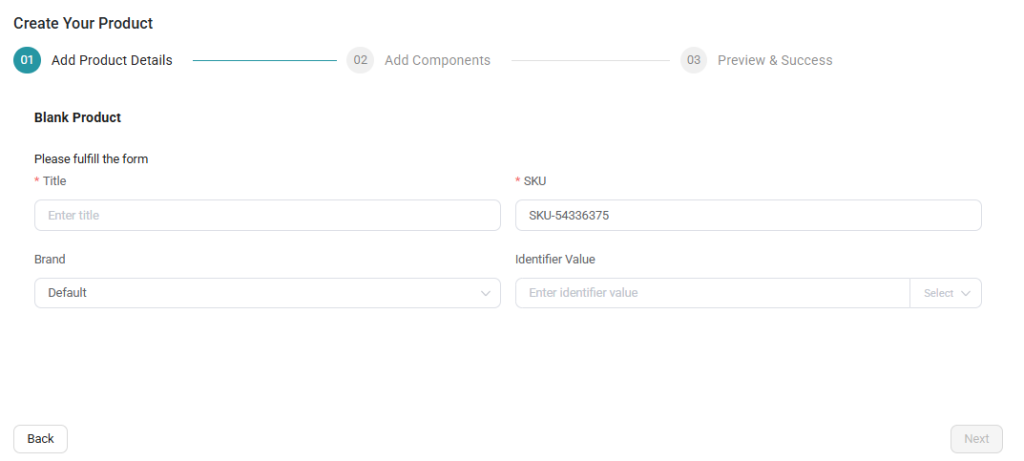
Once the required fields are completed, click Next to continue.
Step 4: Add Components to the Bundle
In the Add Components step, you can select the products that will be included in the bundle.
To add products:
- Use the Search bar to find products by SKU or Title.
- Select the products you want to include in the bundle.
- Review product information such as availability and quantity.
- Add the selected products as bundle components.
Only existing products from your catalog can be added to a bundle.
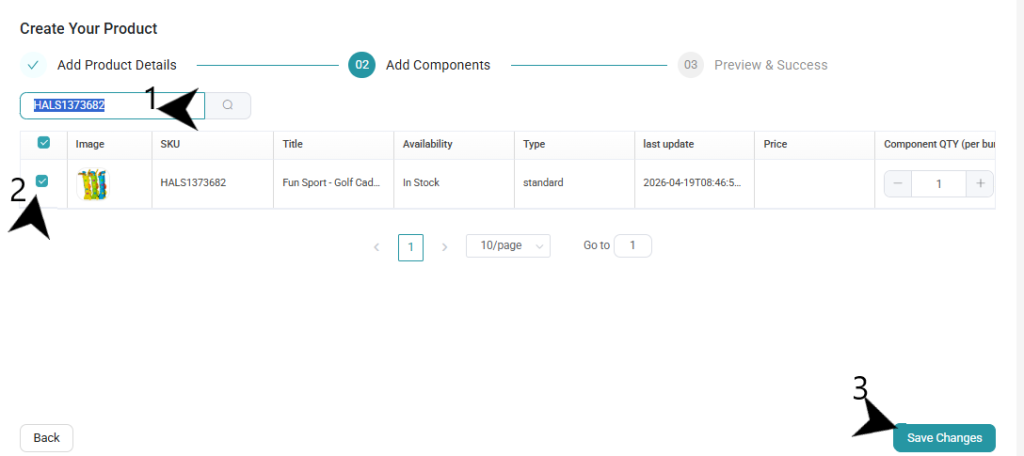
Once all components are added, click Next to proceed.
Step 5: Preview & Complete the Product
In the Preview & Success step, review the bundle details to ensure everything is correct.
Verify:
- Bundle title
- SKU
- Included components
If all information is correct, confirm the creation.
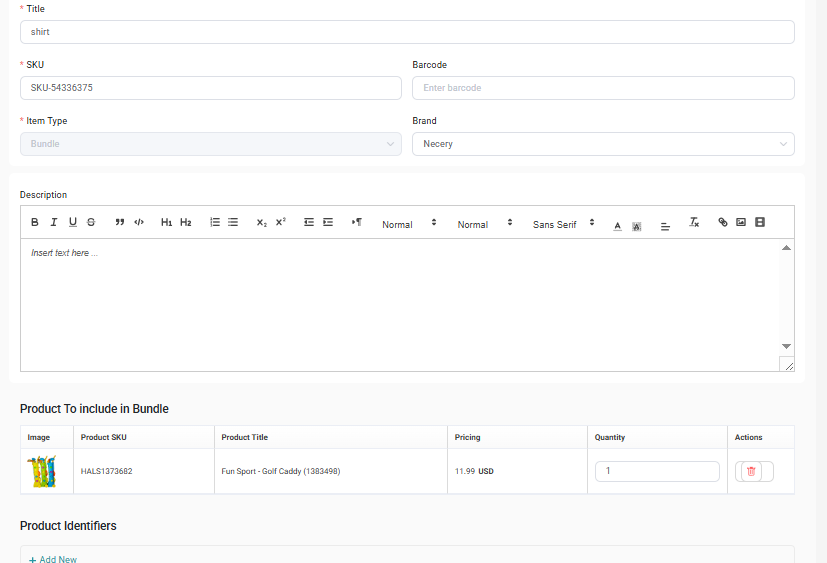
The bundle product will now be successfully created and added to the Product Catalog.
Managing the Bundle Product
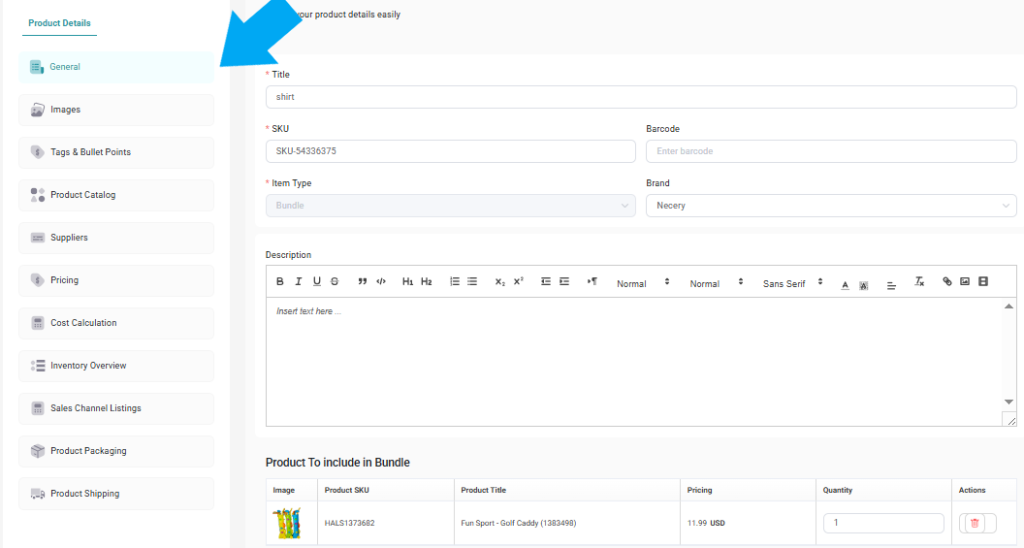
After creating the bundle, you can edit and manage its details from the product page.
You can update:
- Product title and SKU
- Description
- Images
- Pricing
- Inventory settings
- Sales channel listings
- Packaging and shipping details
After making changes, click Save Changes to apply the updates.
Product Created Successfully
Once saved, the bundle product will appear in the Product Catalog.
From there you can:
- View product details
- Edit bundle components
- Manage inventory and pricing
- List the product across your connected sales channels