The Mapping Products feature in SellEnvo allows you to link product listings from external sales channels to the corresponding products inside the SellEnvo catalog.
Mapping ensures that inventory, pricing, and product data remain synchronized between SellEnvo and your connected marketplaces. When a listing is properly mapped, the system can automatically update stock levels, pricing, and product information across channels.
This process is essential for maintaining accurate product data and preventing inconsistencies between your sales channels and your internal product catalog.
Why Product Mapping is Important
When products are imported or synchronized from external channels, they may not always be automatically linked to existing products in SellEnvo.
Mapping allows you to:
- Connect channel listings to existing products.
- Synchronize inventory and pricing updates.
- Avoid duplicate product records.
- Ensure accurate product tracking across channels.
Listings that are not mapped will appear under the Unmapped category in the Listing page.
Accessing Product Mapping
To map products from your listings:
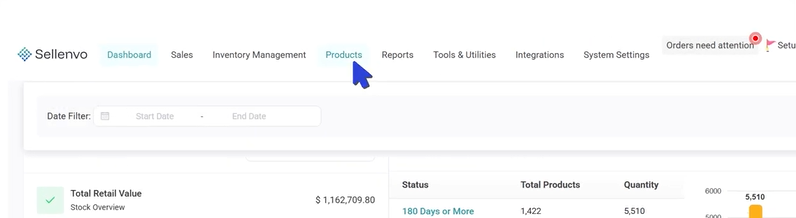
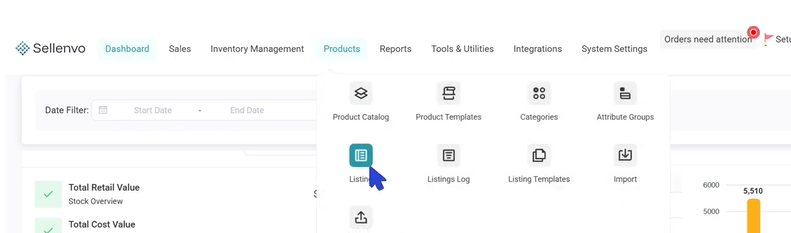
3.Locate the listing you want to map.
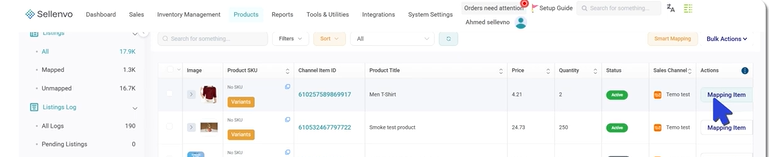
4.Click Mapping Item under the Actions column.
This will open the Mapping window where you can connect the listing to a product in SellEnvo.
Mapping Options
SellEnvo provides multiple ways to map a listing to a product.
Suggested Product
The Suggested Product option displays recommended matches based on product data such as SKU, title, or other attributes.
To use this option:
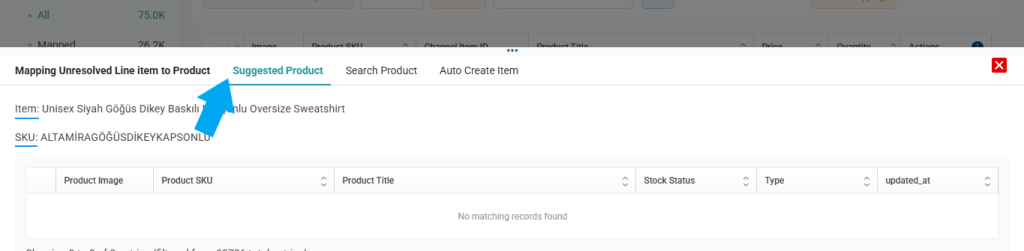
3.Review the suggested matches.

4.Select the correct product.

This method is useful when the system is able to automatically detect potential matches.
Search Product
If the system does not provide a correct suggestion, you can manually search for the product.
Steps:

2.Select Search Product.

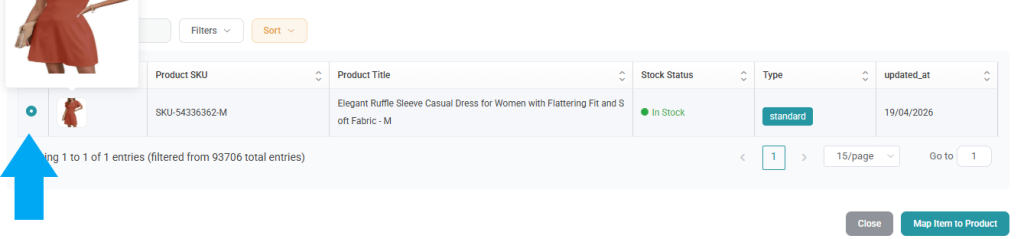
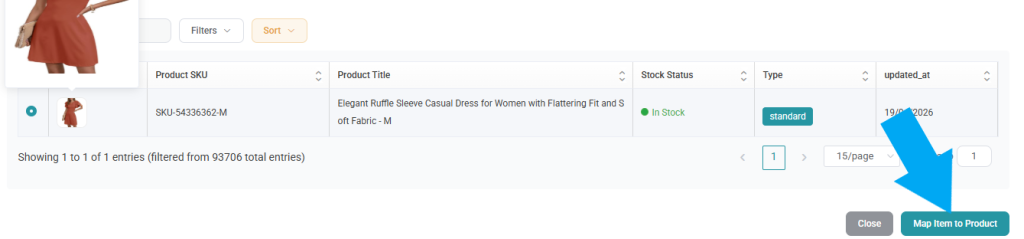
This method gives you full control over selecting the correct product.
Auto Create Item
If the product does not exist in the SellEnvo catalog, you can automatically create a new product directly from the listing.
To create a product from the listing:

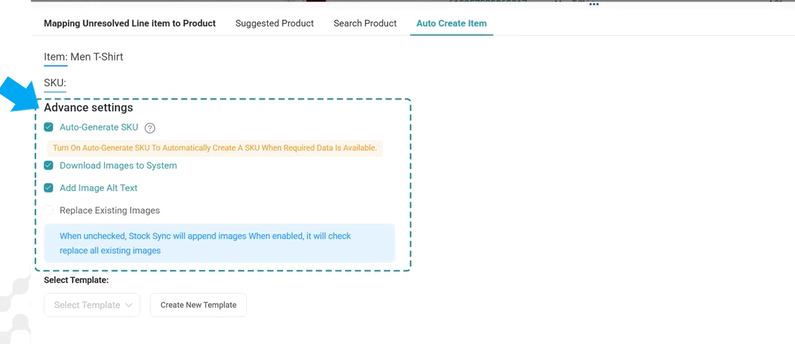
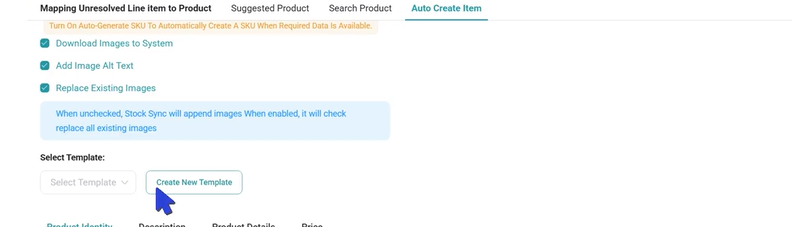
The system will create a new product and automatically map the listing to it.
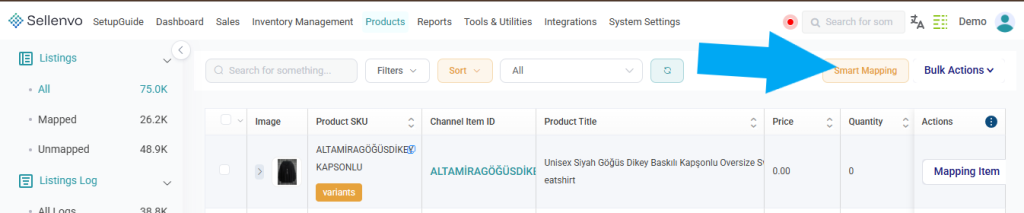
Smart Mapping for Multiple Products
When working with large numbers of listings, manually mapping each product can take time. SellEnvo provides Smart Mapping to automate this process.
To use Smart Mapping:
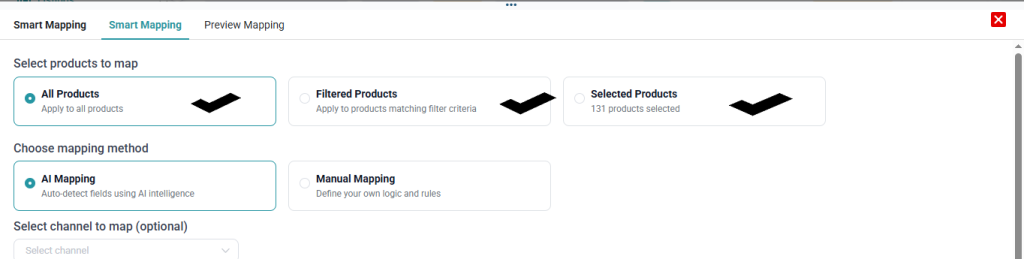
* All Products
* Filtered Products
* Selected Products
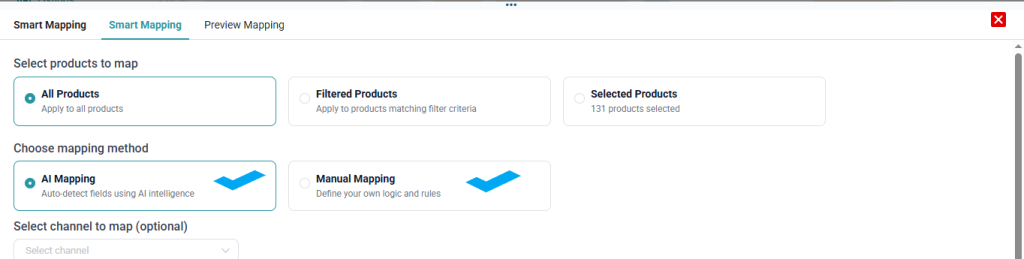
AI Mapping
Manual Mapping
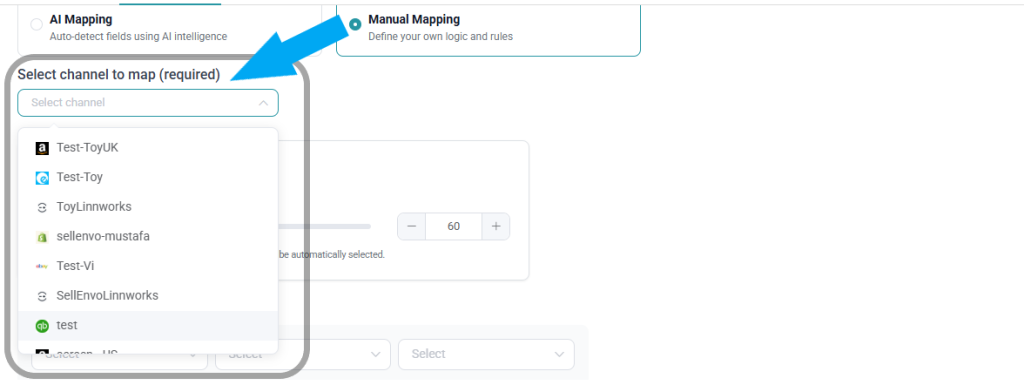
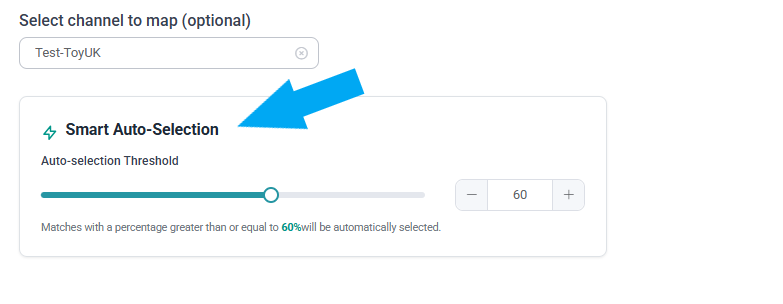
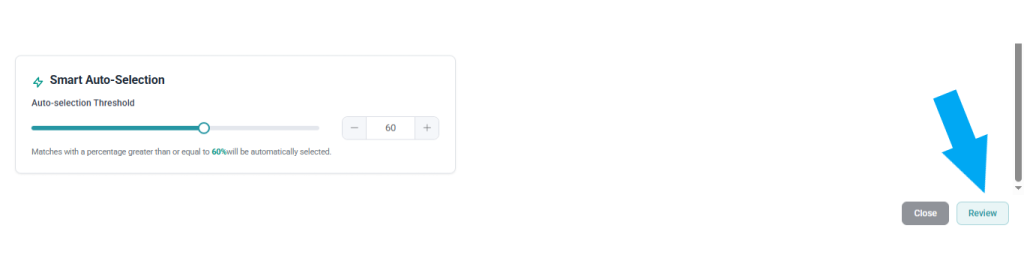
Smart Mapping helps automate product linking while still allowing you to review the results before applying them.
After Mapping
Once a listing is successfully mapped to a product:
- The listing will move from Unmapped to Mapped.
- Inventory updates will synchronize with the mapped product.
- Pricing and listing updates can be managed through SellEnvo.
Proper mapping ensures that product data stays consistent across all connected sales channels.