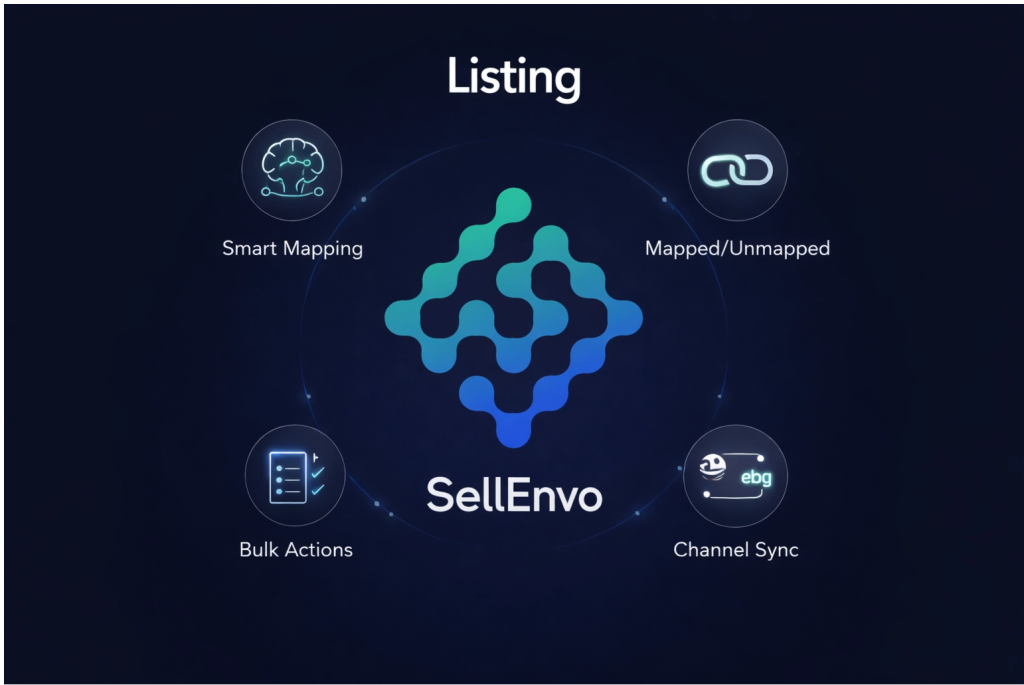
The Listing feature in SellEnvo allows you to manage how products are published and synchronized with connected sales channels such as marketplaces or external platforms.
Through the Listing page, you can view all product listings, track their status, map products to listings, and perform bulk actions to manage listings more efficiently.
This section provides a centralized overview of all listings created across your connected channels.
Accessing the Listing Page
To access the Listing page:
- Navigate to Products from the top navigation bar.
- Click Listing from the Products quick tools panel.
This will open the Listing management page where all product listings are displayed.
Understanding the Listing Page
The Listing page displays a table containing all listings connected to your sales channels.
Each listing includes several key details:
- Image – Product image associated with the listing.
- Product SKU – The SKU assigned to the product.
- Channel Item ID – The unique identifier used by the sales channel.
- Product Title – The name of the product as listed on the channel.
- Quantity – Available stock for the listing.
- Status – Indicates whether the listing is active or inactive.
- Sales Channel – The marketplace or integration where the product is listed.
- Actions – Tools for managing or mapping the listing.
These details help you monitor and manage your product listings across channels.
Filtering and Searching Listings
To quickly find specific listings, you can use the tools available at the top of the page:
- Search bar – Search listings by product information.
- Filters – Narrow results based on specific criteria.
- Status filter – View listings based on their current status.
This helps you efficiently locate and manage listings in large product catalogs.
Listing Categories
On the left sidebar, listings are organized into different categories:
- All – Displays all listings.
- Mapped – Listings that are already linked to a product in SellEnvo.
- Unmapped – Listings that still need to be mapped to a product.
These categories make it easier to identify which listings require action.
Mapping a Listing to a Product
If a listing is not connected to a product in SellEnvo, it can be mapped manually.
To map a listing:
- Locate the listing in the table.
- Click Mapping Item under the Actions column.
- A mapping window will appear.
- Choose one of the available options:
- Suggested Product – Automatically suggested matches.
- Search Product – Search and select an existing product.
- Auto Create Item – Create a new product based on the listing.
- Select the appropriate product.
- Click Map Item to Product to complete the process.
Once mapped, the listing will be linked to the corresponding product in the system.
Smart Mapping
SellEnvo also provides a Smart Mapping tool that automatically maps listings to products using intelligent matching.
To use Smart Mapping:
- Click Smart Mapping at the top of the Listing page.
- Select the products you want to apply the mapping to:
- All Products
- Filtered Products
- Selected Products
- Choose the mapping method:
- AI Mapping
- Manual Mapping
- Optionally select a Sales Channel.
- Adjust the Auto-selection threshold if needed.
- Click Review to preview the results before applying them.
Smart Mapping helps automate the mapping process for large numbers of listings.
Bulk Actions
The Bulk Actions menu allows you to perform multiple operations on listings at once.
Available actions may include:
- Inventory Settings
- Auto Map
- Auto Create
- Pricing Settings
- Auto Revise
- Export Unmapped Listings
- Import Listing Mapping
Bulk actions are useful when managing large numbers of listings across multiple channels.
Viewing Listing Details
You can view detailed information about any listing.
To do this:
- Select a listing from the table.
- Open the listing details panel.
The details panel displays important information such as:
- Channel type
- Pricing information
- Currency
- Listing description
- Listing ID
- Additional listing settings
This information helps verify how the product is configured on the connected sales channel.