

The Supplier Pricing Tiers feature allows businesses to manage different pricing levels for suppliers.
Pricing tiers help organize supplier costs based on different purchasing agreements, currencies, or supplier categories.
This feature is useful when dealing with multiple suppliers that provide different pricing structures.
Accessing Supplier Pricing Tiers
To access supplier pricing tiers:
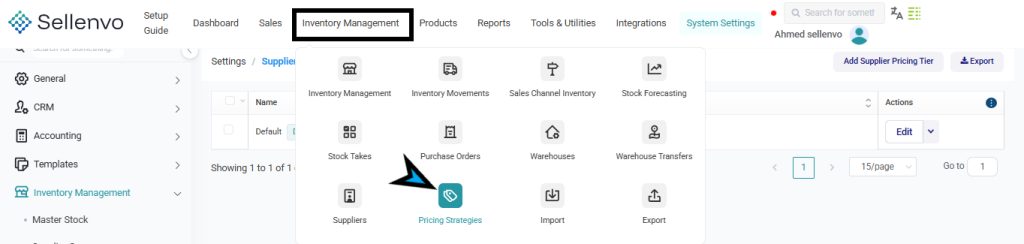
- Navigate to System Settings.
- Open Inventory Management.
- Click Supplier Pricing Tiers.
The page displays all pricing tiers currently configured in the system.
Pricing Tiers List
The pricing tiers page displays a table containing all available pricing tiers.
The table includes the following columns:

- Name – The name of the pricing tier.
- Currency – The currency used for this pricing tier.
- Actions – Options to edit the pricing tier.
Users can also search for pricing tiers using the search bar at the top of the page.
Creating a Pricing Tier
To create a new supplier pricing tier:

- Click Add Supplier Pricing Tier.
- Enter the required information.
- Click Save Changes.
Pricing Tier Fields
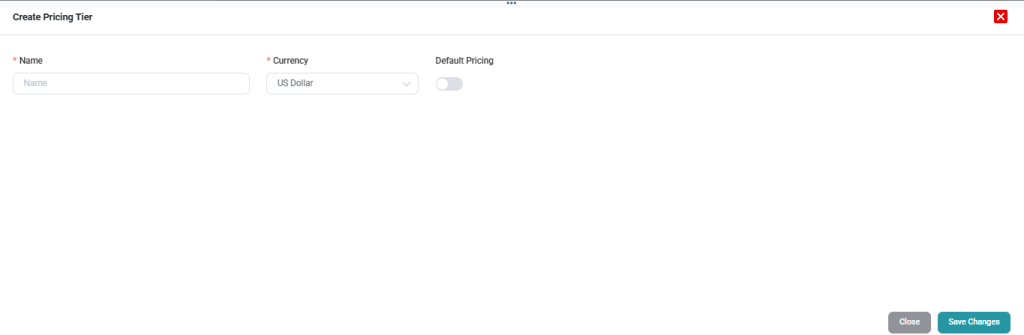
When creating or editing a pricing tier, the following fields are available:
Name
The name of the pricing tier (for example: Default, Wholesale, or Special Supplier Pricing).
Currency
The currency associated with this pricing tier.
Default Pricing
This option marks the pricing tier as the system’s default pricing structure.
If enabled, this pricing tier will be automatically applied unless another tier is specified.
Editing a Pricing Tier
To modify an existing pricing tier:

- Locate the pricing tier in the list.
- Click Edit in the Actions column.
- Update the necessary information.
- Click Save Changes.

