

The Purchase Orders section allows users to create, manage, and track orders placed with suppliers to replenish inventory.
It helps businesses maintain accurate stock levels and ensures products are restocked on time.

Accessing Purchase Orders
To access purchase orders:
- Navigate to Inventory Management.
- Click Create a Purchase Order or open Purchase Order Management from the left sidebar.
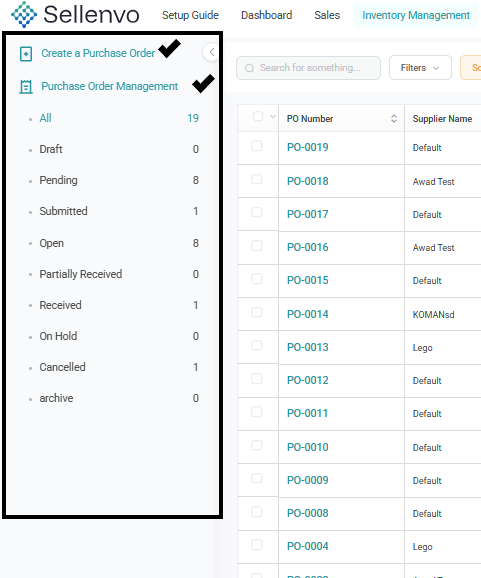
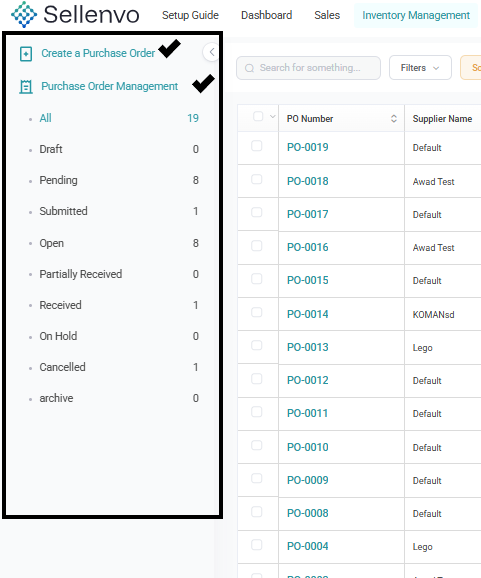
The main page displays all purchase orders created in the system.
Purchase Orders List
The purchase orders page displays all orders in a table format with key information for each order.
The table includes:
- PO Number – Unique identifier for the purchase order.
- Supplier Name – The supplier providing the products.
- Warehouse Location – The destination warehouse for the order.
- Order Date – Date the order was created.
- Expected Delivery Date – The expected arrival date.
- Order Total – Total value of the order.
- PO Status – Current status of the order.
- Manage Order – Options to view and manage the order.

Users can filter purchase orders by status using the sidebar.
Purchase Order Status
Purchase orders can have several statuses depending on their progress:
Draft
The purchase order has been created but not yet finalized.
Pending
The purchase order is created and awaiting further processing.
Submitted
The purchase order has been sent to the supplier.
Open
The order is active and awaiting product delivery.
Partially Received
Some items from the purchase order have been received.
Received
All items in the purchase order have been received.
On Hold
The order has been temporarily paused.
Cancelled
The order has been cancelled and will not be processed.
Archived
The purchase order has been archived for record purposes.
Creating a Purchase Order
To create a new purchase order:
- Click Create Purchase Order.
- Fill in the Order Details section.
Order Details
This section contains the main information about the purchase order.
Fields include:
- PO Number – Automatically generated identifier for the order.
- Supplier PO Number – Reference number provided by the supplier.
- Order Date – The date when the order is created.
- Expected Delivery Date – The estimated arrival date.
- Order Currency – Currency used for the purchase order.

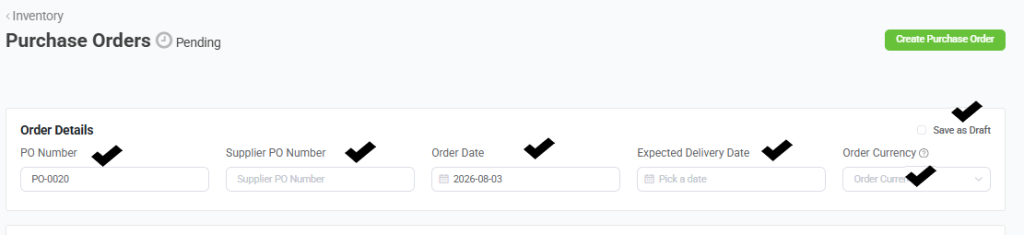
Users can also enable Save as Draft if the order is not yet ready to be finalized.
Supplier & Destination Address
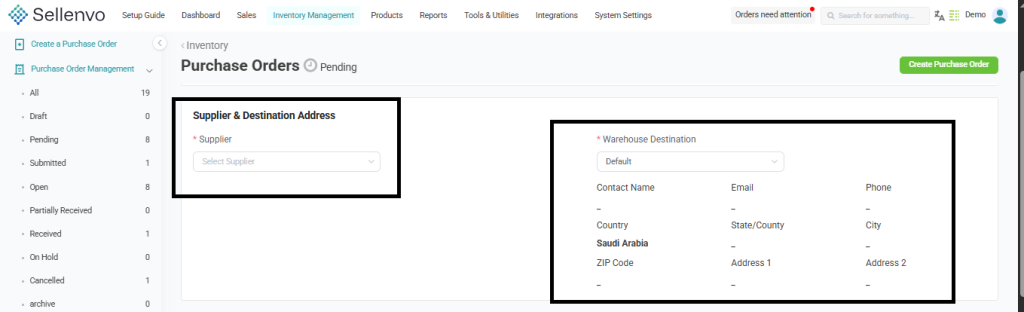
This section defines the supplier and where the inventory will be delivered.
Fields include:
- Supplier – The supplier providing the products.
- Warehouse Destination – The warehouse where items will be delivered.
Once selected, the system automatically displays supplier contact details such as:
- Contact name
- Phone
- Country
- City
- Address information
Order Line Items
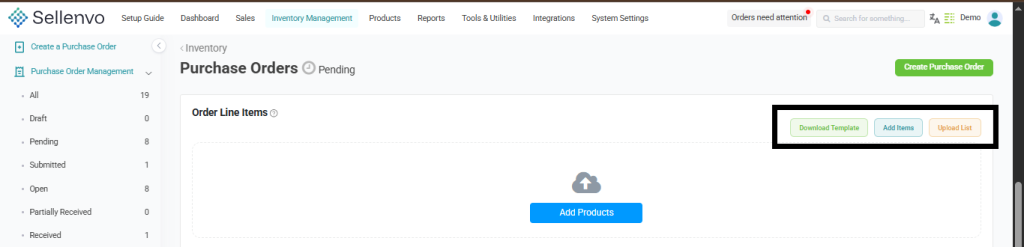
The Order Line Items section is where products are added to the purchase order.
Users can:
- Add Items manually
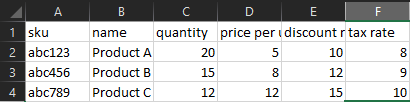
- Upload List to import multiple products
- Download Template to prepare product lists for upload
Each item includes:
- Product name
- SKU
- Quantity
- Price per unit
- Tax rate
- Total cost
Users can also add additional lines using Add New Line.
Order Summary
At the bottom of the order form, the system calculates:
- Order Subtotal
- Tax Rate
- Order Total
These values update automatically based on the items added.
PO Tags
Users can add tags to the purchase order to help organize or categorize orders.

Additional Notes
The Notes section allows users to add extra information related to the purchase order, such as supplier instructions or internal comments.


