

The Sales Channel Inventory section in SellEnvo allows users to manage and monitor product inventory across different sales channels. This section provides visibility into how product stock is allocated, synced, and made available for each connected channel.
It helps businesses ensure that inventory levels remain accurate across multiple marketplaces, stores, and fulfillment methods.
Accessing Sales Channel Inventory
To access this section:
- Navigate to Inventory Management from the top navigation bar.
- Click Sales Channel Inventory.
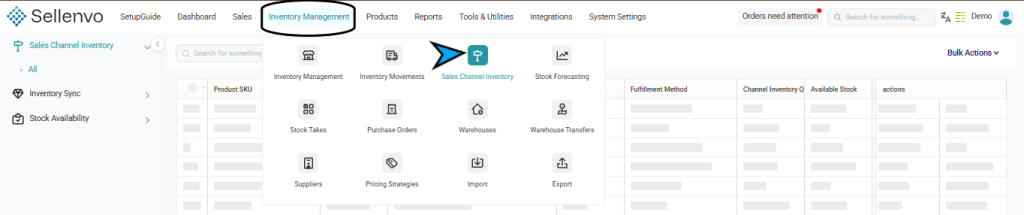
The page displays a table that lists products and their inventory details across sales channels.
Sales Channel Inventory Table
The table shows product inventory information for each sales channel.
The available columns include:
- Product SKU – The internal SKU used in SellEnvo.
- Sales Channel SKU – The SKU used on the connected sales channel.
- Product Title – The name of the product.
- Sales Channel – The marketplace or store where the product is listed.
- Fulfillment Method – The fulfillment method used for the product (for example MFN or a warehouse location).
- Channel Inventory Quantity – The quantity allocated to that specific sales channel.
- Available Stock – The stock currently available in the warehouse.
- Inventory Rule – The rule used to determine how inventory is managed.
- Actions – Available actions for managing inventory settings.

Users can also use the Search, Filters, and Sort options to quickly locate specific products.
Managing Inventory Settings
Each product row includes an Update Inventory Settings button under the Actions column.
Clicking this button opens the inventory configuration panel for the selected product and channel.

The panel contains multiple configuration tabs.
MFN Settings
The MFN tab allows users to configure how inventory is handled for Merchant Fulfilled Network (MFN) orders.
Available options include:
Inherit Channel Settings
When enabled, the product will follow the default inventory settings defined for the sales channel.
Enable Inventory Sync
This option allows the system to synchronize inventory quantities between SellEnvo and the connected sales channel.
Inventory Source
Defines the warehouse or location from which inventory will be pulled.
Stock Percentage
Allows users to allocate a percentage of the available stock to the sales channel.
Max Listed
Defines the maximum quantity that can be listed for the product.
End When
Defines the quantity level at which the listing will stop being available.
Available Quantity
Displays the available quantity currently detected by the system.
Calculated Quantity
Displays the calculated quantity that will be listed on the sales channel based on the configured rules.
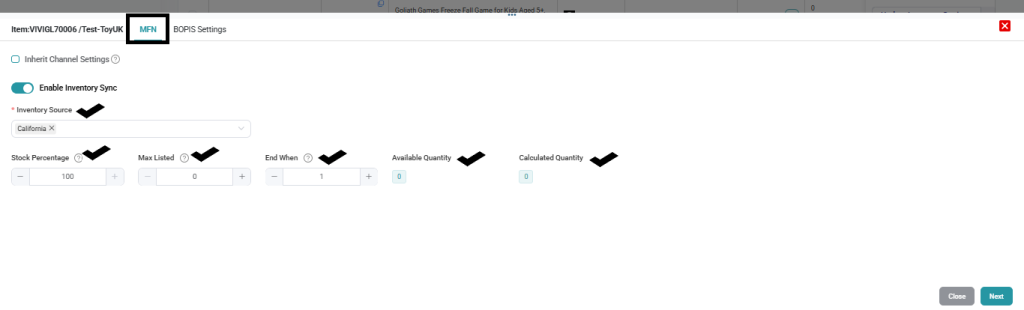
After configuring these settings, users can click Save Changes to apply the updates.
BOPIS Settings
Another tab available in the inventory settings panel is BOPIS Settings.
BOPIS stands for Buy Online, Pick Up In Store.
In this tab, users can configure whether the product can be purchased online and picked up from a physical store location.
Available options may include:
- Enable the selected items on BOPIS for this channel
- Inherit Channel Settings
- Disable
- New Item Settings
- Enable Inventory Sync
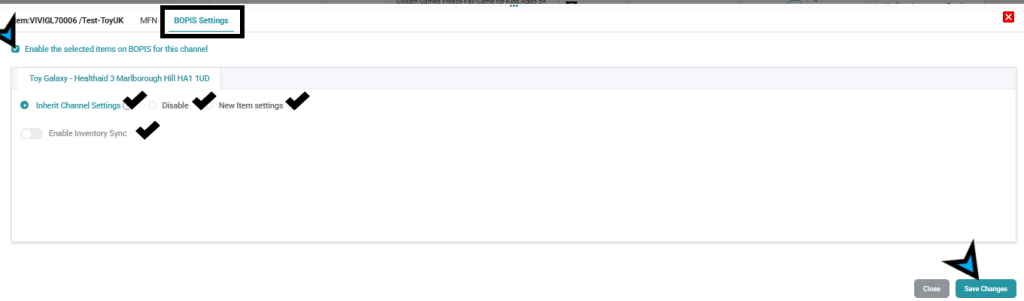
Once configured, users can save the changes by clicking Save Changes.
Inventory Sync
The left sidebar provides an Inventory Sync section that helps users monitor how inventory is tracked across channels.
Available views include:
- Tracked – Products currently synchronized with inventory tracking.
- Untracked Stock – Products that are not currently tracked.
Stock Availability
The Stock Availability section allows users to quickly view product availability.
Available views include:
- In Stock – Products that currently have available inventory.
- Out of Stock – Products that are currently unavailable.
This helps users quickly identify stock issues across their sales channels.

