

This guide explains how to create and configure a new data export job.
You can define how data is exported, structured, and delivered based on your business requirements.
How to Create a New Export Job


3.Configure the export settings as described below
4.Click Next to proceed
Exporter Feed Settings
In this section, you define how the export will be generated:
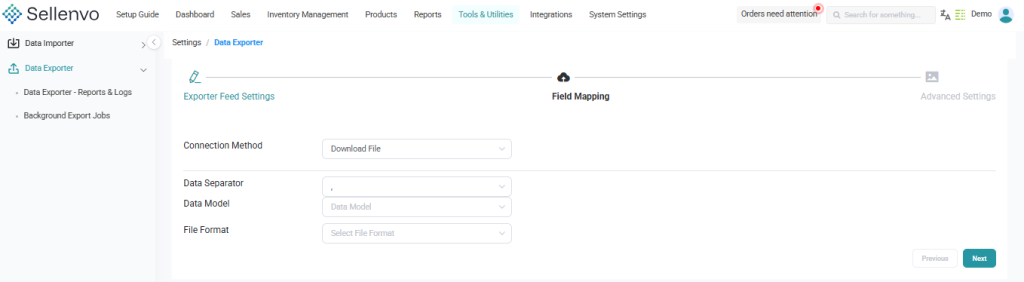
- Connection Method:
Choose how the exported data will be delivered (e.g., download file) - Data Separator:
Define the character used to separate data fields (e.g., comma, semicolon) - Data Model:
Select the dataset or structure to export - File Format:
Choose the format of the exported file
Field Mapping
This section allows you to define how data fields are structured in the export:
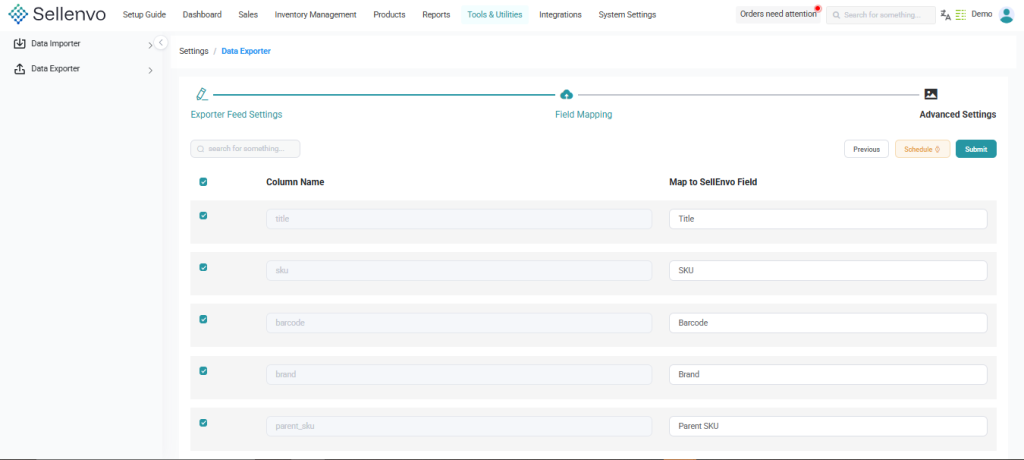
- Map system fields to output fields
- Customize column structure and naming
- Ensure compatibility with external systems
Navigation
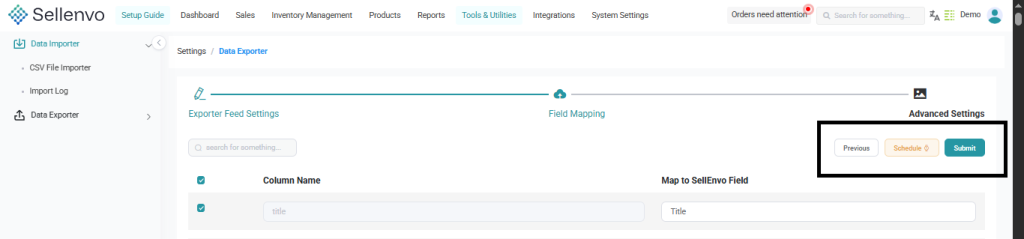
- Click Next to continue to the next step
- Click Previous to go back and modify settings
Advanced Settings
Use Advanced Settings (if available) to:
- Configure additional export options
- Customize advanced export behavior
How to Use This Feature
This feature helps you:
- Create customized export configurations
- Structure exported data based on your needs
- Ensure data compatibility with external tools
- Automate export workflows
Notes
- Select the correct data model to match your use case
- Ensure proper field mapping for accurate exports
- Use appropriate file formats depending on destination systems
- Test your export configuration before scheduling

